
How To Turn Off Windows AI Features
Learn to turn that crap off!

Here’s the most recent newsletter in case you missed it!

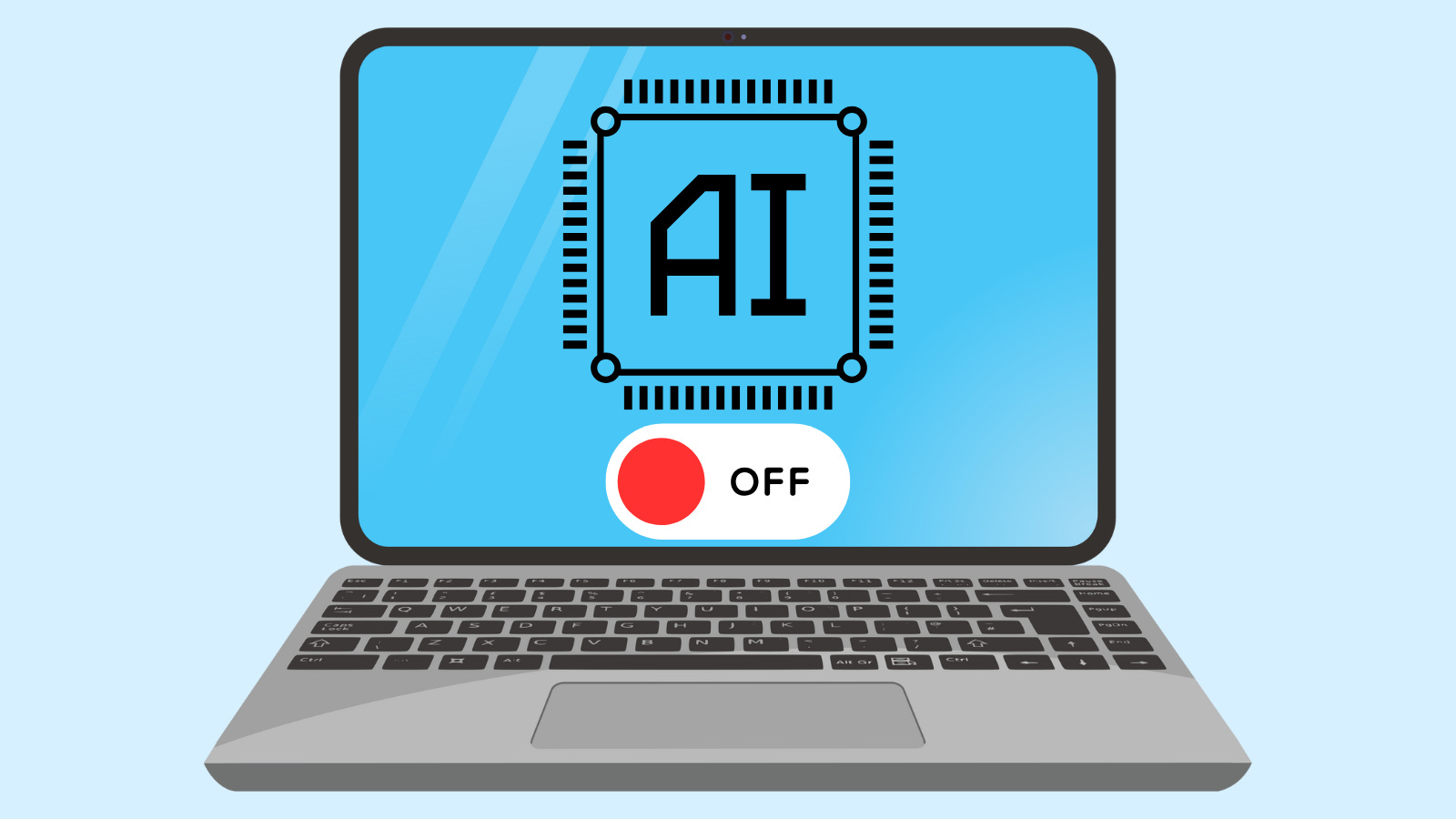
Big Tech companies have for the past several years been shoving AI features in their products, whether we like it or not; Microsoft is certainly no exception. From Recall to Copilot, they just keep adding these features no one asked for. And a recent blog post from Microsoft’s CEO Satya Nadella asking us to stop calling AI “slop” (fine, is “crap” better?), it’s quite clear that strategy won’t stop anytime soon.
If you are a Windows user and not fond of the AI features, you can disable them, and there are a few easy ways to do so.
Remove Windows AI features manually
You can easily disable Windows AI features yourself, so you don’t have to worry about them running in the background. Note: You might not have some of the AI features since it depends on the hardware that you have.
Proton’s guide to turn off Copilot
Tuta’s guide to turn off Recall
Use tools that disable Windows AI features for you
There are many tools that you can use that will remove the AI features for you. Additionally, many of these tools can also remove additional bloat that Windows has so it can make your laptop/desktop run smoother and cleaner. Here are a few tools that I came across.
1.) Win11Debloat - Available for Windows 11 and 10, it’s a free and open source script that allows you to remove a ton of bloatware, disable telemetry, and much more. A recent update now allows the script to remove a lot of AI crap that Microsoft has forced in, such as:
Disable & remove Microsoft Copilot
Disable Windows Recall (Windows 11 only)
Disable AI features in Edge browser
Make sure you read the full documentation to understand what Win11Debloat can and can’t do. If you would like to support the software, you can sponsor the project or support them on Ko-fi.
2.) Remove Windows AI - Available for Windows 11 only, Remove Windows AI is a free and open source script that aims to remove all of those AI features and components to increase user experience, privacy, and security. Some things the script can do include:
Disable Registry Keys (Copilot, Recall)
Prevent Reinstall of AI Packages
Remove AI files
Again, make sure you read the documentation to understand the limits of Remove Windows AI. If you would like to support the software, you can do so by buying them a coffee.
3.) CrapFixer - Available for Windows 11 and 10, it’s a free and open source script that, as the name suggests, fixes that crap that has been stuffed into the operating system. A recent update now also removes the AI features from Windows 11 only. If you would like to support the software, you can do so by supporting them either through PayPal or Ko-fi.
Until Next Time,
Monique 💻
Additional Link 🔗:

✨ Writing informative newsletters takes time and resources, especially given that I manage everything on my own. If you enjoy my work, please consider becoming a recurring donor or adding to the tip jar. Your donations allow me to continue creating newsletters but also help out with everyday expenses.